

Understanding the Real Lifecycle of Business Hardware
Executive Summary
How old is too old for a business computer?
There isn’t a single answer.
Businesses often hear that computers should be replaced every three, four, or five years. Those guidelines can be useful for budgeting, but the age of a computer should not, by itself, determine when it needs to be replaced.
With the cost of new hardware continuing to increase, replacing a computer simply because it reaches a certain age may not make good business sense. At the same time, keeping an aging computer too long can create its own costs through lost productivity, increased support, security limitations, and unexpected failures.
At Computers, Inc., we believe the better approach is to consider several factors together and make replacement decisions based on risk, performance, supportability, and business need—not just a date on the calendar.
There Is No Expiration Date on a Computer
A computer doesn’t suddenly become unusable when it turns five years old.
One five-year-old computer may continue working perfectly well for an employee who primarily uses email, Microsoft 365, and a web browser.
Another computer of exactly the same age may be causing repeated support calls, running short on storage, struggling with newer software, or performing an important function where an unexpected failure would seriously disrupt the business.
Those two computers shouldn’t necessarily receive the same recommendation.
That’s why we consider hardware age a useful warning sign—not an automatic replacement order.
The Factors That Matter
1. Age
Age still matters.
As computers get older, the probability of component failure increases, warranties expire, replacement parts become less practical, and newer software places greater demands on older hardware.
For planning purposes, a three-to-five-year refresh cycle is commonly used for business computers.
But we view that as a planning guideline rather than a deadline.
A computer entering that range should begin appearing on the company’s technology roadmap. It doesn’t necessarily need to be replaced that day.
2. Operating System and Security Support
This can be more important than physical age.
A computer may still run perfectly well but no longer support a current operating system or important security features.
Windows 10 is a good example. Microsoft ended standard support for Windows 10 on October 14, 2025. A computer that cannot reasonably move to a supported operating system deserves much closer attention, regardless of whether the hardware itself still works.
A functioning computer that can no longer be adequately secured can become a business risk.
3. Reliability
This is one of the most important factors.
A six-year-old computer that hasn’t caused a support problem in two years is different from a six-year-old computer that has generated six service calls in the past year.
Repeated problems involving drives, memory, overheating, crashes, startup issues, or other hardware failures are indications that continued repair may no longer be the best investment.
At some point, the question changes from “Can we fix it?” to “Does it still make financial sense to fix it?”
4. Performance and Productivity
Slow computers have a cost even when they aren’t technically broken.
Consider an employee losing just 10 minutes each workday waiting for applications, files, updates, or an aging computer.
That’s more than 40 hours of lost productivity over a year.
Multiply that across several employees and inexpensive-looking older computers can become surprisingly expensive.
On the other hand, if an older computer performs its job adequately, there may be no business reason to replace it simply to have something newer.
5. Storage and Capacity
A computer that’s running out of disk space may experience slow performance, difficulty installing updates, application problems, and other reliability issues.
Sometimes the solution is simple: clean up the drive or upgrade the storage.
Other times, low storage is just one more problem on an already aging computer.
This is why we don’t look at any single measurement in isolation.
Eight-year-old computer + very little free disk space + recurring support problems tells a very different story from five-year-old computer + plenty of storage + no support problems.
6. What the Computer Does
Not every computer carries the same business risk.
If an infrequently used spare workstation fails, the consequences may be minor.
If the computer controlling accounting, production, dispatch, patient scheduling, or another critical business function fails, the impact could be substantial.
The more important the computer is to daily operations, the less sense it may make to operate it until it fails.
Sometimes replacement is about the condition of the computer.
Sometimes it’s about the cost of being without it.
What Does “Aging” Mean?
When CI identifies a computer as Aging, we’re not necessarily recommending that you replace it.
We’re saying:
This computer has entered the stage of its lifecycle where replacement should begin to be considered and budgeted.
We continue looking at its performance, operating system, storage, reliability, support history, and role in the business.
If everything looks good, continuing to use it may be perfectly reasonable.
The important thing is that it is now on the radar.
What Does “Replacement Recommended” Mean?
This distinction is important.
Replacement Recommended does not mean we believe the computer is about to fail.
It means enough factors have accumulated that we believe planned replacement is preferable to continuing to depend on the computer until something forces the decision.
Those factors might include:
- Advanced hardware age
- Unsupported or soon-to-be-unsupported operating system
- Repeated service incidents
- Insufficient storage
- Poor performance
- Hardware reliability concerns
- Expired warranty
- Software compatibility problems
- The importance of the computer to business operations
The recommendation should reflect the whole picture.
Three Ways to Manage Aging Computers
Businesses don’t have to replace every aging computer at once.
Address the Highest-Risk Computers First
Replace only the machines presenting the greatest combination of age, reliability, security, performance, or business-continuity concerns.
This minimizes immediate expense while addressing the greatest risks.
Replace Computers That Have Reached the End of Their Practical Lifecycle
Address systems already classified as Replacement Recommended while continuing to use and monitor equipment that is simply Aging.
This provides a balance between modernization and cost.
Create a Planned Refresh Cycle
Rather than waiting for equipment to fail—or replacing everything at once—spread replacements over several budget periods.
For many businesses, this is the best long-term approach because hardware becomes a planned operating expense rather than an unexpected emergency.
The Goal Isn’t to Have the Newest Computers
It’s to have the right computers.
Technology planning shouldn’t be about replacing perfectly useful equipment just because it’s old.
And it shouldn’t be about keeping equipment indefinitely simply because it still turns on.
The objective is to find the point where the cost and risk of continuing to use a computer begin to outweigh the cost of replacing it.
That’s a business decision—not simply a technical one.
How CI Helps Clients Plan Hardware Replacement
For Computers, Inc. Gold Key clients, hardware lifecycle planning is built directly into the CI Client Portal.
The portal maintains a current inventory of the computers and servers under our management and provides information such as operating system, processor generation, available disk space, recent user, and device activity.
It also identifies systems as Current, Aging, or Replacement Recommended to help clients see where future technology expenses may be developing.
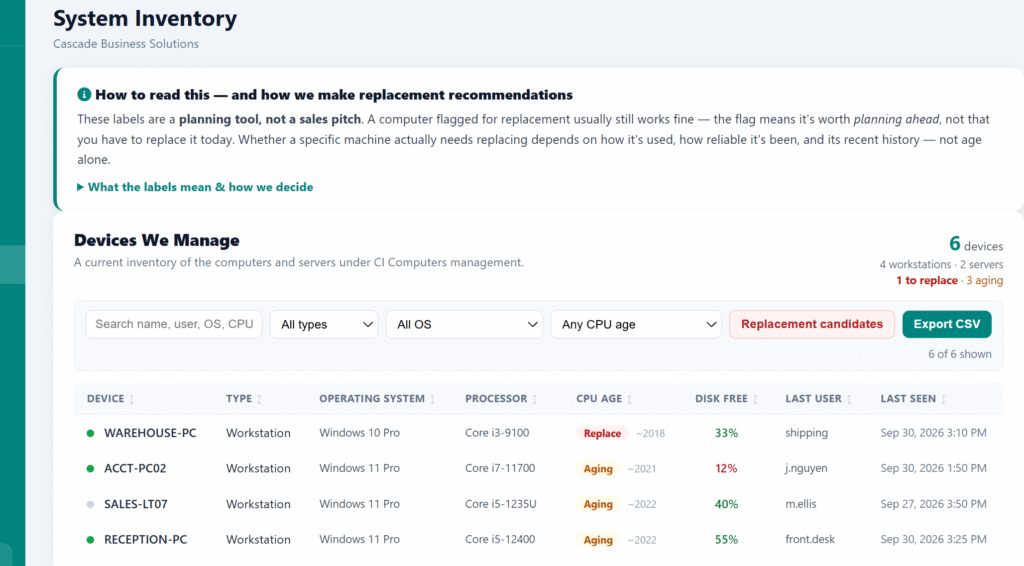
Example from the CI Client Portal demonstration environment. Gold Key clients see hardware lifecycle information specific to their own technology environment.
But the label alone doesn’t determine whether a computer should actually be replaced.
A computer identified as Replacement Recommended may still be working perfectly well. The designation means the system has reached a point where replacement deserves consideration and should be part of the technology planning process.
Before making a specific recommendation, CI considers the larger picture—including the computer’s age, operating-system support, available capacity, reliability, support history, performance, and importance to the business.
Our goal isn’t to tell you which computers are old. It’s to help you understand what needs attention now, what can safely wait, and what should be included in future technology budgets.
Importantly, these classifications are a starting point—not an automatic instruction to replace a computer.
CI combines this information with other factors such as operating-system support, available storage, reliability, support history, performance, and the role the computer plays in the business before making a specific replacement recommendation.
The goal is to give business owners something many businesses don’t have today:
A clear picture of what you own, what deserves attention, what can wait, and what should be included in the technology budget.
From Inventory to Technology Planning
A hardware inventory becomes much more valuable when it helps answer business questions:
- Which computers should we replace first?
- Which older computers are still performing well?
- Which devices are creating repeated support issues?
- Are any systems becoming security or compatibility concerns?
- What should we budget for during the next 12–24 months?
- Can replacements be spread over several budget periods?
That’s the difference between simply maintaining a list of computers and actively managing their lifecycle.s.
The Bottom Line
Age should start the conversation, not make the decision.
At Computers, Inc., our goal is to help you get the useful life you’ve paid for from your technology while identifying equipment that is becoming a security, reliability, productivity, or business-continuity concern.
Especially as hardware becomes more expensive, good technology management means knowing what needs to be replaced, what can safely wait, and why.
That’s the difference between replacing computers because they’re old and managing the lifecycle of your technology.