

Artificial intelligence can seem complicated when you first open a tool like ChatGPT, Claude, Microsoft Copilot, or Google Gemini. There are menus, different modes, file options, and features you may not recognize.
The good news is that you don’t need to understand all of them to get started.
This guide covers the basics of navigating an AI assistant, starting a conversation, working with files, and trying a few practical business uses.
Understanding the AI Workspace
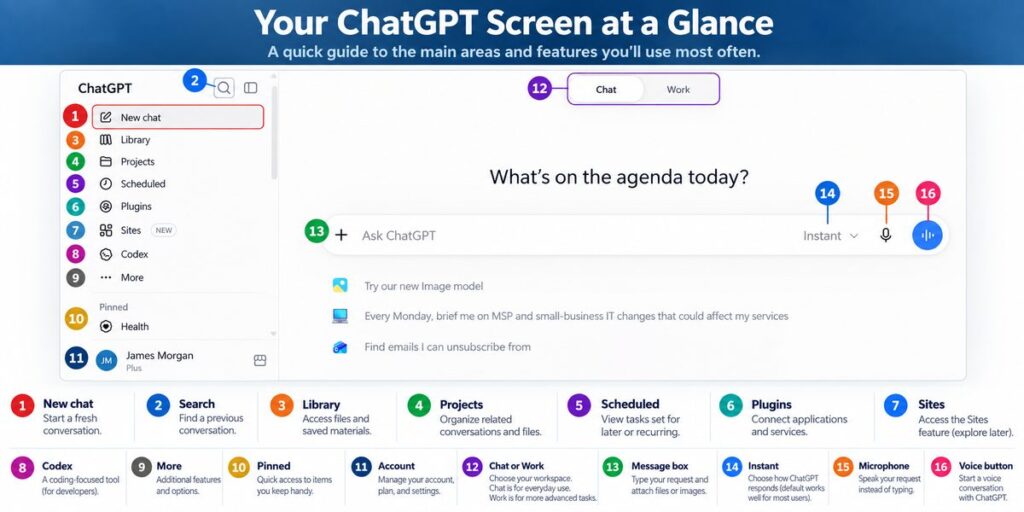
| Area | In the Graphic | What It Does |
|---|---|---|
| Conversation area | Main center area | Where you ask questions, receive answers, and continue a discussion. |
| Sidebar / navigation | #1–11 | Where you start new conversations, find previous work, organize information, and access additional features. |
| Message box | #13–16 | Where you type your request, attach files or images, choose options, or use voice. |
Tip: You don’t need to learn everything on this screen. If you’re new to AI, start with New Chat (#1), Search (#2), and the Message Box (#13). Those three are enough to begin using ChatGPT effectively. #12 changes the type of workspace, while #14–16 provide additional ways to interact with ChatGP
The exact layout varies among AI products and can change over time, but these basic concepts are similar.
Understanding the ChatGPT Sidebar
The sidebar on the left side of the screen gives you access to previous conversations and many of ChatGPT’s additional features.
As shown in the graphic above, there are quite a few options—but you don’t need to learn them all at once.
If you’re just getting started, focus on three things:
- New Chat (#1) — Start a new conversation.
- Search (#2) — Find a conversation you’ve had previously.
- Your previous conversations — Return to something you’ve already been working on and continue where you left off.
Features such as Library (#3), Projects (#4), Scheduled tasks (#5), and Plugins (#6) become useful as you begin doing more with AI. The other options can wait until you have a reason to use them.
Depending on your account, subscription, and device, the options you see may be somewhat different.
Understanding the Main Screen
The Microphone (#15) lets you dictate instead of typing, while the Voice button (#16) starts a voice conversation.
The large area in the center of the screen is where most of the work happens.
Chat or Work (#12) lets you choose the type of workspace. For someone getting started, Chat is the simplest place to begin.
The Message Box (#13) is where you type what you want help with. You don’t need special commands or computer terminology—just describe what you want in ordinary language.
The + button beside the message box lets you add files, images, and other information to your conversation.
Instant (#14) controls how ChatGPT approaches the request. Beginners can generally leave this at its default setting.
Starting Your First Conversation
One of the most important things to understand about AI is that you can simply talk to it.
For example:
I own a small business with 15 employees. Help me create a checklist for onboarding a new employee. Keep it practical and easy to follow.
Suppose the answer is useful, but longer than you wanted. Don’t start over. Just continue the conversation:
Make the checklist shorter and organize it into things we should do before the employee’s first day and things we should do during their first week.
You can continue refining the answer:
Add a section for setting up the employee’s computer, email, and Microsoft 365 account.
This is one of the biggest differences between using AI and performing a traditional internet search.
You don’t have to get your question perfect the first time.
Treat it like a conversation. Provide additional information, ask follow-up questions, and tell the AI what you would like changed.
Using AI With Documents and Images
AI becomes considerably more useful when you begin working with information you already have.
Many AI assistants allow you to attach documents, spreadsheets, PDFs, and images.
For example, you might provide a sales report and ask:
Summarize the major trends in this report. Identify anything unusual and explain it in language a business owner can understand.
You could upload a proposal and ask:
Review this proposal and identify anything that might be confusing to a customer.
Or provide a screenshot of a software error and ask:
What does this error mean, and what should I check first?
This can save considerable time, but it also introduces an important consideration: what information are you giving the AI?
Before uploading a document, consider whether it contains confidential customer information, employee records, financial information, passwords, legal information, or other sensitive data. Businesses should establish guidelines for what information employees are permitted to provide to AI systems.
ChatGPT, Claude, Copilot, and Gemini: What’s the Difference?
ChatGPT isn’t the only AI assistant.
Claude, Microsoft Copilot, Google Gemini, and other products offer many similar capabilities. They can answer questions, help write and analyze information, and assist with everyday business tasks.
Where they differ is often in their specialized capabilities and the other systems they can work with.
For example, some AI tools can work inside programming environments, while others integrate closely with Microsoft 365, Google Workspace, or other business applications.
You don’t need to choose an AI platform based on which one has the longest feature list.
A better question is:
What do I want AI to help me accomplish, and which tool is appropriate for the information involved?
Three Easy Things to Try
If you’re new to AI, don’t begin with your most complicated business problem.
Start with something useful that doesn’t require confidential information:
- Ask AI to improve a routine business email you’ve written.
- Ask it to create a checklist for a recurring office task.
- Ask it to explain an unfamiliar technology term in plain English.
Then experiment with follow-up questions.
Try saying:
Make that shorter.
Explain that without technical terminology.
Give me three alternatives.
What questions should I be asking that I haven’t thought of?
That last question can be particularly useful. AI isn’t only useful for providing answers—it can also help you think through a problem.
Don’t Assume AI Is Always Right
AI can produce answers that sound very convincing and still contain mistakes.
Important facts, calculations, legal information, financial information, security recommendations, and other consequential information should be verified before you act on them.
Think of AI as a very capable assistant—not as an unquestionable authority.
Questions to Ask Your IT Provider
Before introducing AI throughout your company, consider discussing these questions with your IT provider:
- Which AI tools should our employees be using?
- What company or customer information should never be entered into an AI system?
- Should employees use personal accounts or company-managed accounts?
- What security and administrative controls are available?
- Can AI safely connect to our Microsoft 365, Google Workspace, CRM, case-management, or other business systems?
- Should we establish a written AI-use policy for employees?
The Bottom Line
You don’t need to understand every feature of AI before you start using it.
Learn the basic navigation. Start with a few simple, low-risk tasks. Ask follow-up questions. Experiment with what works.
As you become more comfortable, you’ll begin to recognize where AI can save time, improve productivity, and help you make better-informed business decisions.